Showing posts with label Linux. Show all posts

How to configure IP address in Linux Step by Step

Every node participating in networking needs a valid IP address. On Linux command prompt IP address is assigned by a network configuration window. This window can be invoked by selecting network configuration sub menu form setupcommand or directly executing system-config-network commands.
Run setup command form root user
 #setup 
setup
this will launch a new window select network configuration
network configurations
now a new window will show you all available LAN card select your LAN card ( if you don’t see any LAN card here mean you don’t have install driver)
select lan devices in setup
assign IP in this box and click ok
assign ip address
click on ok, quit and again quit to come back on root prompt.
Alternately you can use system-config-network command directly to invoke this setup window
 #system-config-network 
system-config-network
whatever change you made in network configuration will not take place till you restart the LAN card
 #service network restart 
service network restart
ifconfig
ifconfig
The ifconfig command will display the configuration of all active Ethernet card. Without specifying any parameter this command will show all active Ethernet card. if you want to see the configuration of any specific Ethernet card then use the name of that card as the command line arguments. for example to show the IP configuration on loop back Interface execute this command
 #ifconfig lo 
ifconfig lo

ifup/ifdown

ifup ifdown etho
Each installed network adapter has a corresponding ifcfg-* file in /etc/sysconfig/network-scripts. You can activate or deactivate that adapter with the ifup and ifdown commands. Either of the following commands will activate the eth0 network adapter:
 #ifup ifcfg-eth0 #ifup eth0 
netstat
netstat -r
The netstat program provides real-time information on the status of your network connections, as well as network statistics and the routing table. The netstat command has several options you can use to bring up different sorts of information about your network.

arp

arp
The Address Resolution Protocol associates the hardware address of a network adapter with an IP address. The arp command (in the /sbin directory) displays a table of hardware and IP addresses on the local computer. With arp, you can detect problems such as duplicate addresses on the network, or you can manually add arp entries as required.

mii-tool

mii tools
mii-tool command is used to check the link is activated or not. Most use of mii-tool command is to check to physical link of Ethernet card on command line. With this command you can check on command prompt that cable is plugged in LAN card or not.

ping

ping command is used to check the physical connectivity. If you get reply mean everything is ok. If you get request time out response means there is some problem it could be unplugged cable power off switch or enabled firewall on destination node. If you get Destination host unreachable means remote node is not in your network. Use CTRL+C to abort the ping sequence
ping

service network restart

Whatever change you made in network configuration files will not take place until you restart the network services. To implement change this command is used.
service network restart

Red Hat Enterprise Linux (RHEL) 6 Installation Guide Step by Step

This is the article which will guide you step-by-step installation of Red Hat Enterprise Linux 6 (Santiago) with screenshots. Current stable version is 6.3 (mirror update 3). Red Hat Enterprise Linux is one of the best and stable Linux Operating systems.
RHEL 6 Installation Guide
Red Hat Enterprise Linux is a Linux-based operating system developed by Red Hat and targeted the commercial market.

The Red Hat Enterprise Linux 6 is available on the following architectures:

Red Hat Enterprise Linux is released in server versions for x86, x86-64 for Itanium, PowerPCand IBM System z, and Desktop versions. Download center for RHEL 6 DVD/CD fromhttps://access.redhat.com/downloads.
There are numbers of new technology and features are added; some of the important features are listed below:
  1. Ext4 a default filesystem, and the optional XFS filesystem.
  2. XEN is replaced by KVM (Kernel based Virtualization). However, XEN is supported tillRHEL 5 life cycle.
  3. Supported future ready Filesystem called Btrfs pronounced “Better F S”.
  4. Upstart event driven which contains scripts that are only activated when they are needed. With Upstart, RHEL 6 has adopted a new and much faster alternative for the old System V boot procedure.
There are number of installation types such as unattended installation called Kickstart, andText-based Installer, I’ve used Graphical Installer. And I have installed it on my testing environment. Please choose packages during installation as per your need. So, let’s get started. Boot Computer Using Red Hat 6 Installation CD/DVD.

Red Hat Enterprise Linux 6 Installation

1. Select Install or upgrade existing system options.
2. Select Language.
3. Select keyboard type.

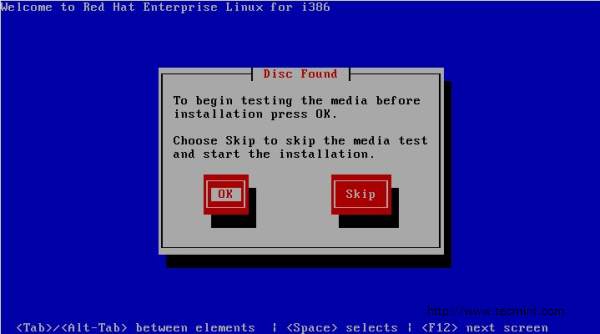
4. Choose skip media test, click ok if you want to check media.
Skip RHEL 6 media test
5. Select storage device.
6. Type computer name or hostname.
7. Select time zone location.
8. Enter password for root user.
9. Select type of installation and review partitioning layout carefully also may choose Encrypt system.
10. Review partitioning layout, modify if needed. I have chosen default setup with Ext4 andLVM.
11. Manually configuration of LVM and RAID storage.
12. Creating partition and formatting filesystems.
13. Configuring boot loader options, also can give boot loader password for security reason.
14. Select applications to install and select customize now.
15. Customize package selections.
16. Installation progress.
17. Installation is completed successfully.
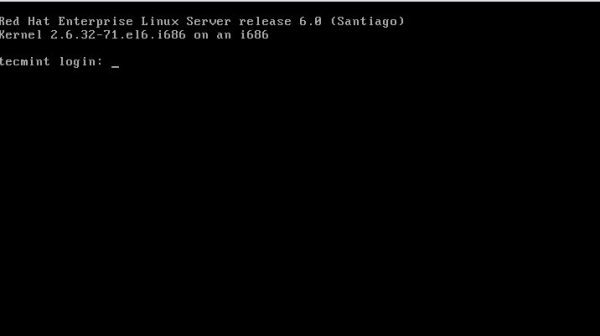
18. Please reboot your computer and login with root credentials as you set in the Step #8.
19. Login Screen.
RHEL 6 Login Screen
RHEL 6 Login Screen
Liked the article? Sharing is the best way to say thank you !